
What Is RAM? A Beginner-Friendly Guide to Computer Memory
Random Access Memory, better known as RAM, is the short-term memory your device uses while it is running. When you open a browser, launch a game, edit a photo, or switch between apps, your computer temporarily places the data it needs into RAM so the processor can access it quickly. Without enough RAM, even a fast computer can start to feel slow, a good way to think of it is that RAM is what makes your PC run smoothly. This isn’t just for a computer, however; every ‘smart’ device that you own uses RAM for this exact same process: your TV, phone, tablet, even those fridges that have a touch screen.

What RAM Actually Does
Think of RAM like a desk. Your storage drive is the filing cabinet where everything is kept long term, but RAM is the open workspace where the things you are actively using sit temporarily. The bigger the desk, the more documents, apps, browser tabs, and projects you can keep open before things get crowded. The more RAM you have, the larger your desk, and when we say more RAM, we mean the storage on the RAM sticks themselves; RAM can store 8, 16, 32, 64, or up to 124 gigabytes of storage on individual sticks of RAM. The more storage per stick, the better.
RAM is much faster than a hard drive or SSD, which is why computers use it for active tasks. However, RAM is volatile memory, meaning it retains information only while the device has power. If the computer shuts off, the information in RAM disappears unless it has been saved to storage.

RAM vs. Storage
RAM and storage are often confused because both involve data, but they serve different purposes. Storage, such as an SSD or hard drive, keeps your files, apps, operating system, and photos even when the device is turned off. RAM temporarily holds the information your system needs right now. More storage lets you keep more files; more RAM helps your device handle more work at once.
Why RAM Matters for Performance
When your computer has enough RAM, apps can stay open, browser tabs can remain responsive, and large files can load smoothly. When RAM runs low, the system may start moving temporary data back and forth between RAM and storage, which is slower. That can lead to lag, freezing, delayed app switching, and longer loading times.
Common RAM Terms
- GB: Gigabytes measure RAM capacity. More gigabytes usually means more room for multitasking.
- DDR: Double Data Rate is a family of RAM standards, such as DDR4 and DDR5. Newer generations can offer higher speeds and efficiency, but compatibility depends on your motherboard or device.
- Speed: RAM speed affects how quickly data can move, though real-world performance also depends on the processor, motherboard, and software.
- Dual-channel memory: Using two compatible RAM sticks can sometimes improve memory bandwidth compared with using a single stick.
How Much RAM Do You Need?
For basic computer functions like web browsing, email, and document editing, 8 GB can be enough for many users. Standard office workstations can do their tasks with 8 GB with no issue. For heavier multitasking such as specialized workstations for creative projects, school or office work, and casual gaming, 16 GB is often a comfortable starting point. For demanding games, content creation, virtual machines, large spreadsheets, or professional editing workflows, 32 GB or more may be worthwhile as they allow the computer to process much higher rates of data and lead to a more seamless experience with less stutter, lag, and overall performance.

Can You Upgrade RAM?
Some desktop PCs and laptops allow RAM upgrades, while many thin laptops, tablets, and phones have memory soldered directly onto the board. Before buying RAM, check the device’s maximum supported capacity, RAM generation, and most importantly the form factor of RAM. While both Laptops, PC’s, and Servers each need RAM to function, let alone be powered on, the type of RAM you buy for a Laptop is physically different then that of a server or computer, with completely different means of installation as well.
Although installation processes differ between computers and laptops, RAM is generally the easiest component to install. There are designated slots on the motherboard for RAM, however, it’s important to keep in mind three factors when selecting RAM:
- The compatibility with the board: While Laptops are compatible with SODIMM (Small Outline Dual In-line Memory Module) RAM, motherboards for servers or PC’s have two options for RAM, DDR4 and DDR5. The differences between these types of RAM are not only at the software level but also at the hardware level, meaning it is physically impossible to insert different types of RAM into a slot not designed for them.
- Orientation: The slots for RAM on a board are designed so that RAM clips in, however, it needs to be rotated the right way so that the contact pins (the golden-looking fingers) make direct contact with the board. There is a small slit in the pins with a corresponding part on the board for it to fit around. For DDR4 and DDR5, the slit is in different positions, so a DDR4 board can’t fit DDR5 RAM and vice versa.
- Slot Optimization: Typically, there will be a standard of four RAM slots on a motherboard, and with these there comes a particular order in which they are inserted into the board for optimized functionality. This order is not universal and should be checked with official documentation before they are installed.
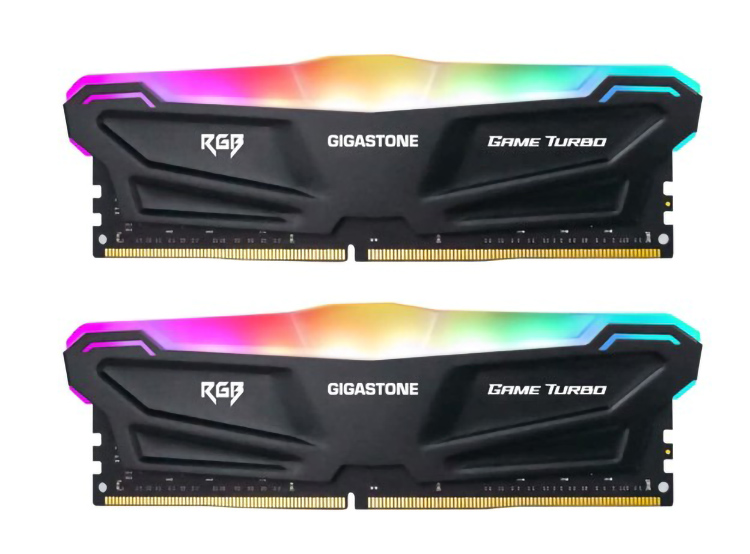
RAM is not where your files permanently live, but it plays a major role in how fast and responsive your device feels. If storage is your long-term library, RAM is your active workspace. Understanding that difference makes it easier to choose the right computer, troubleshoot slow performance, and decide whether a memory upgrade is worth it.


Game Consoles vs. Gaming PCs: Which One Is Really Worth It?